System Configuration (visible/modifyable for the system administrator ONLY)
An installed version of BACKCLICK on your own server is required for the first steps of system configuration. The installation is described in the chapter Installation in the manual.
After you have installed BACKCLICK on your server, you may start the system configuration of the software. Please note that we only describe the most important settings in this quickstart. More detailed information can be found in the chapter Installation.
Ask your administrator for the URL to login to BACKCLICK.
Please use Internet Explorer or Mozilla Firefox.
Our example uses http://doku.backclickasp.de/bc/.
Instead of “doku.backclickasp.de” use the URL provided by your administrator.
Username, Password, and Mandator
Upon delivery, BACKCLICK will have the super-user “bcadmin” with the password “bcadmin”.
You CANNOT delete this user. It will always be part of the standard mandator.
Please use the administrative user “bcadmin” for your first login:
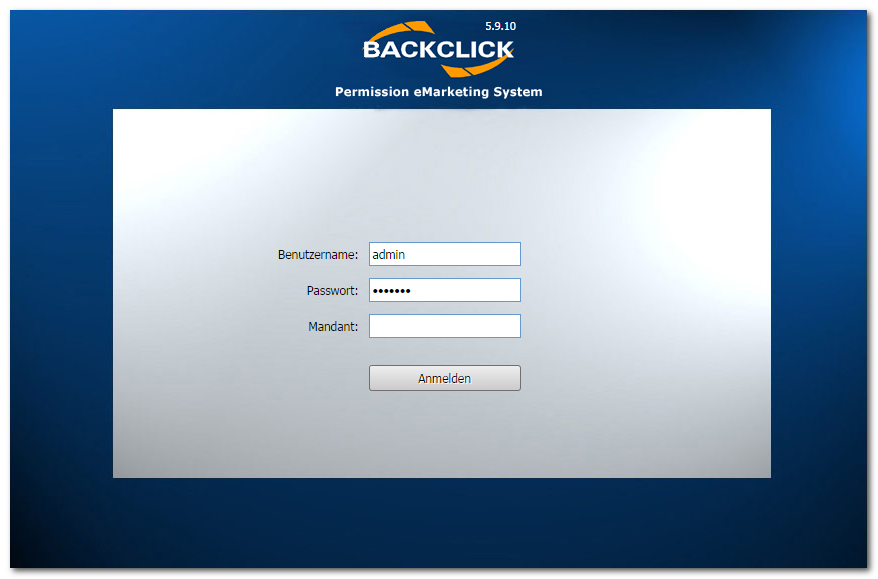
Figure 3.1 - Login screen
Username : bcadmin
Password : bcadmin
Mandator : <leave blank for default mandator>
If “access denied” or another error message appears, either your adminstrator changed the password or installation/configuration of the software has not been completed yet. Contact your administrator for the current password or the status of the installation.
If your installation is completed, you will see the user interface (GUI). On the left-hand side, an overview of the main menu is displayed. Clicking the "+" opens a submenu, clicking on "-" hides the respective submenu.
To start configuring , please click “System Setting” in “System-Administration” (main menu). The following mask will be shown (in delivery status):
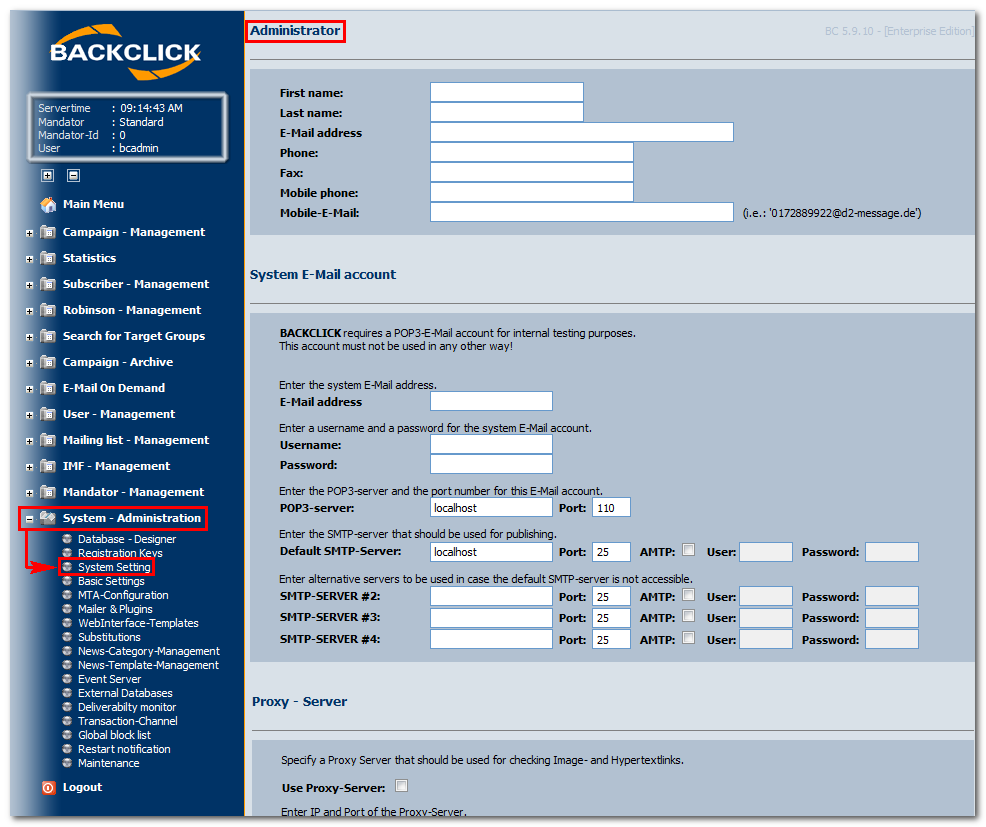
Fig. 3.1.1 - System Configuration (delivery status)
Administrator
Enter your administrator's data here, if this has not happened during installation. In emergency situations, this account will be used for warnings and status E-Mails by the system.
System E-mail Account
Enter the data of a POP3 postbox to be used for system internal checks. Fields for “SMTP Server #2" to "#4” are optional.
Proxy - Server
You may define a (HTTP) Proxy-Server here. In order to do so you have to confirm the use of a Proxy-Server once and provide this server in the field "Server-address". If no Proxy-Server is necessary leave these fields blank.
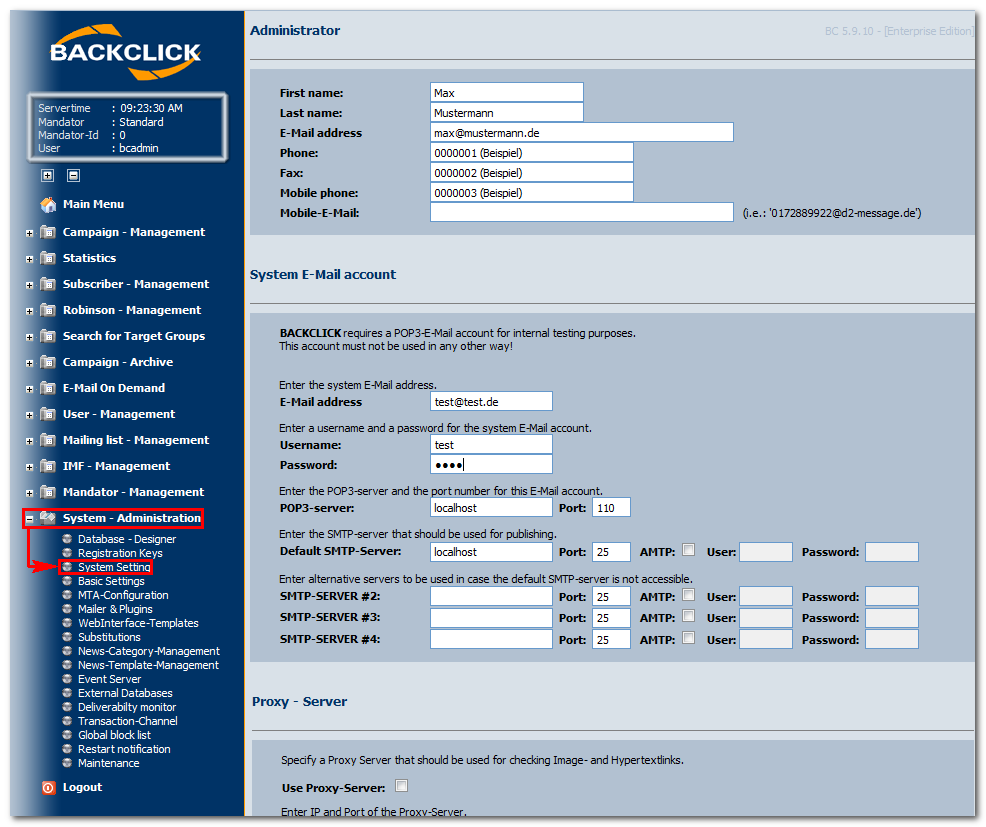
Fig. 3.1.1.1 - System Configuration (Part 1 - Example input)
Initial IMF settings
Enter the initial settings of the intelligent E-Mail filter (handling of returned E-Mails) here. These settings define whether the E-Mails that could not be filtered should be forwarded to the administrator of the newsletter, either as an attachment to an IMF E-Mail, or forwarded as-is. In case you want to send the non-filtered returns (Bounce-Mails) as an attachment, you may define how many of these returns are supposed to be attached to a single, accumulative E-Mail to the administrator of the corresponding newsletter.
WebInterface Configuration
The WebInterface is an important component of BACKCLICK. It enables your subscribers to:
- Subscribe to a newsletter
- Unsubscribe from a newsletter
- Edit their personal profile
- Recommend your newsletter(s) to a friend
- Use the "Forgot my Password" feature
Some of these features can be disabled. For safety reasons it is also possible to set a password for all communications between WebInterface and server. The default password is “Webinterface”. You should only change it when absolutely necessary since it requires modifying a configuration file (web.xml) as well. The feature “recommend” allows your customers to recommend your newsletter(s) to a friend. Since this feature sends an E-Mail to the potential subscriber you should define a period of time before recommending the same E-Mail address is possible. Otherwise this feature could be abused for SPAM purposes.
URL-Encode
This function encodes links to UTF 8 in order to prevent browsers from misinterpreting your special characters. For example, if one of your links contains a link to another website, this link will be encoded.
This way http://domain.backclick.de?target=http://www.google.de is encoded to http://domain.backclick.de?target=http%3A%2F%2Fwww.google.de.
Authentification Module
Use this feature to check whether an E-Mail address is already present in your system. It is possible to restrict access to this module to certain IP addresses for security purposes. Access from other IP addresses will be denied.
HTTP subscriber API
The “HTTP subscriber API” enables you to manage creating, deleting and modifying subscribers via URL. It is possible to restrict access to this module to certain IP addresses for security purposes.
Fig. 3.1.1.3 - System Configuration (Part 2 - Example input)
Mailer & Plugins
Use these settings to adjust:
- The monitoring frequency, meaning how often you want to check for the necessity of a newsletter dispatch.
- Whether or not the IMF-filter (see Initial IMF Settings) should be activated.
Fig. 3.1.1.4 - System Configuration (Part 4 - Example input)
After all settings are done and you want to save them, please click the "save" button. The "back" button will close the current view without commiting any changes and take you back to the Main Menu.
Default Settings (Visible to the system administrator and the mandator/user administrator ONLY)
In order to log in you have to go to the BACKCLICK homepage and enter your user data as described in System Configuration. Note: Your system administrator has to provide you with your username and password.
After logging in use the 'System - Administration' submenu 'Basic Settings' to display to the following editing view:
Fig. 3.1.2 - Basic Settings
In delivery status:
Fig. 3.1.2.1 - Basic settings (Delivery status - part 1)
Mandator
This field is visible to your super-administrator only. When choosing a mandator he/she is able to look at and modify the corresponding settings.
Server-Address
Enter the entire URL to the BACKCLICK login page (GUI) into the first 'Server Address' field. Note: The last sign in the URL cannot be a '/' (Slash). In our case we enter: http://localhost/bc. The second server address specifies where your WebInterface is installed (usually both addresses are identical).
HTML-Editor
You may activate or deactivate the HTML-Editor here. This affects the possibility to compose a newsletter without any HTML knowledge. When activated, it is possible to enter a text without following any specific formatting and stil get the desired result in your newsletter.
Default Format Date
You may use a placeholder for the current time in your newsletters. This variable ($$APIDATE$$) can be used for different display variants. Six of the most common time formats are predefined, but you may define your own as well using the field “Custom Format”. The following variables are available:
Symbol | Description | Type | Example |
G | Era designator | (Text) | BC, AD |
y | Year | (Number) | 2000 |
M | Month in year | (Text & Number) | October & 10 |
d | Day in month | (Number) | 24 |
h | Hour in am/pm (1-12) | (Number) | 12 |
H | Hour in a day (0-23) | (Number) | 18 |
m | Minute in an hour | (Number) | 30 |
| s | Second in a minute | (Number) | 55 |
S | Millisecond | (Number) | 987 |
E | Day in a week | (Text) | Tuesday |
D | Day in a year | (Number) | 189 |
F | Day of week in a month | (Number) | 1 (0-based -> 1 = Tuesday) |
w | Week in a year | (Number) | 27 |
W | Week in a month | (Number) | 2 |
a | am/pm marker | (Text) | PM |
k | Hour in a day (1-24) | (Number) | 24 |
K | Hour in am/pm (0-11) | (Number) | 0 |
z | Time zone | (Text) | CEST |
' | Escape for Text | (Delimiter) | |
" | single quote | (Literal) | ' |
Examples:
Format | Result |
yyyy.MM.dd G 'at' hh:mm:ss z | 2004.09.05 AD at 03:16:51 CEST |
EEE, MMM d, ''yy | Sun, Sep 5, '04 |
h:mm a | 3:16 PM |
hh 'o'clock' a, zzzz | 03 o'clock PM, Central European Summer Time |
K:mm a, z | 3:16 PM, CEST |
yyyy.MMMM.dd GGG hh:mm aaa | 2004.September.05 AD 03:16 PM |
dd. MMMM yyyy G, HH:mm:ss 'o'clock' | 05. September 2004 AD, 15:16:51 o'clock |
Check your entries by clicking on the help symbol (

) next to the input field. You will see the current time in the format you chose.
Authentication
It is possible to import XML content and send newsletters from external software when using BACKCLICK. In order to do so, BACKCLICK processes XML data and executes the corresponding actions. To protect your system against unauthorized access via XML you may activate the authentication. When activated, all XML data have to contain login/password of a valid BACKCLICK user account. In this case the fields "NEWSLETTER-AUTHOR-LOGIN" and "NEWSLETTER-AUTHOR-PASSWORD" are mandatory.
Spam Check
You may activate the spam-assassin here in order to check the probability of your newsletter beeing classified as spam for some providers. This external programm provides you with hints about the content of your newsletter that might be of interest for spam filters of some providers. When activated, you have to define the server the programm is running on.